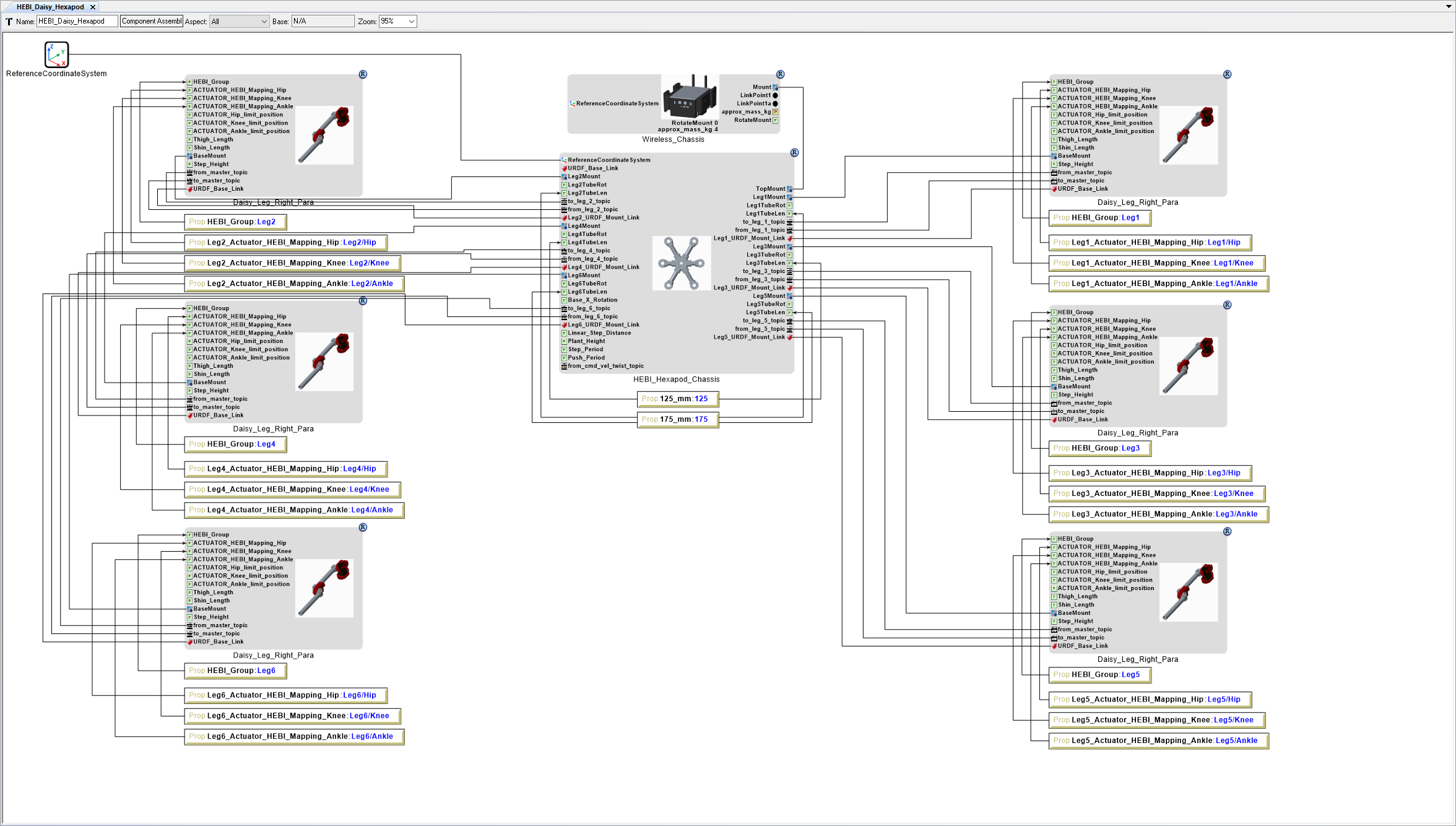
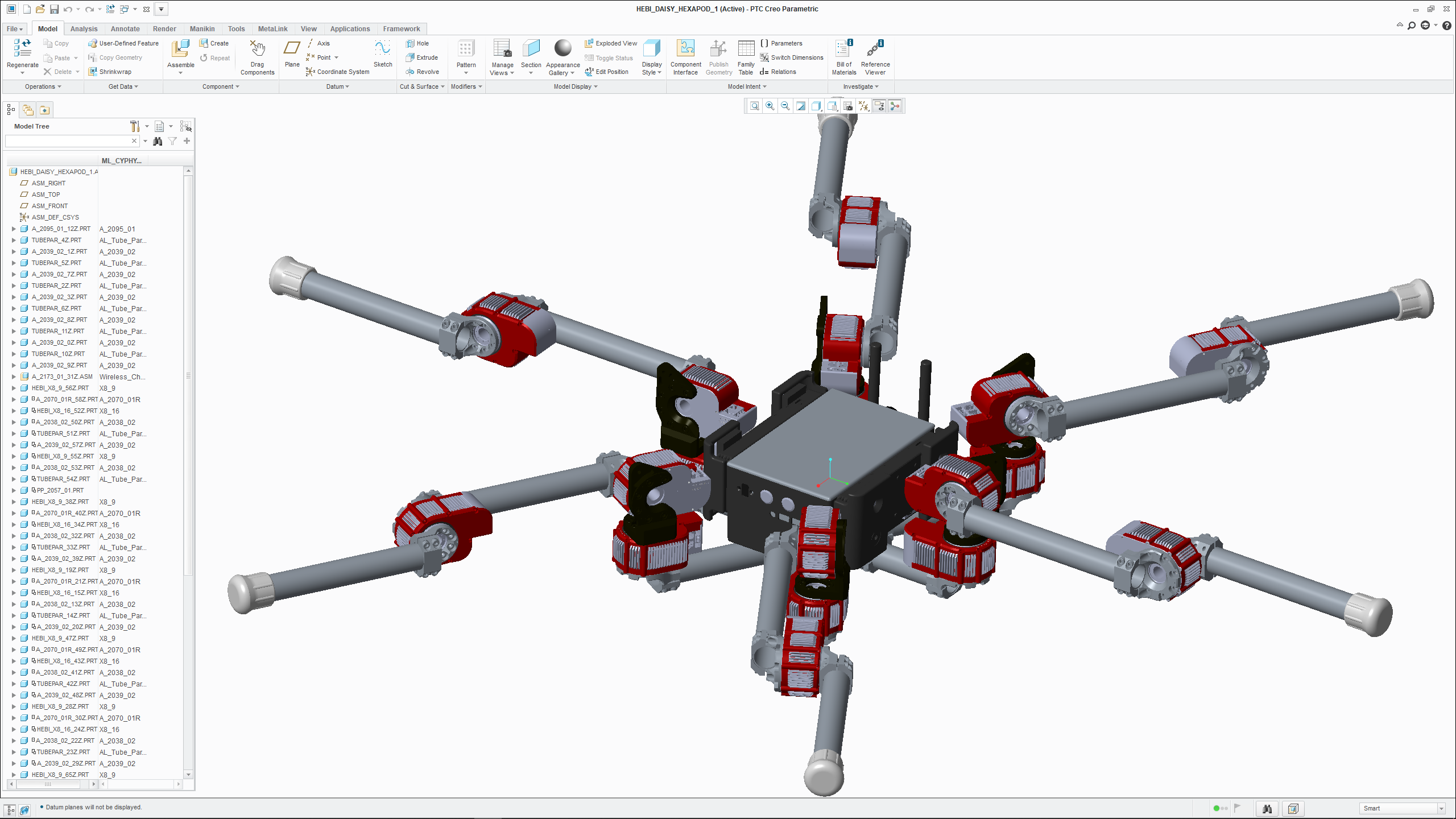
Build Legs
Now it’s time to add legs.
Add Right Legs
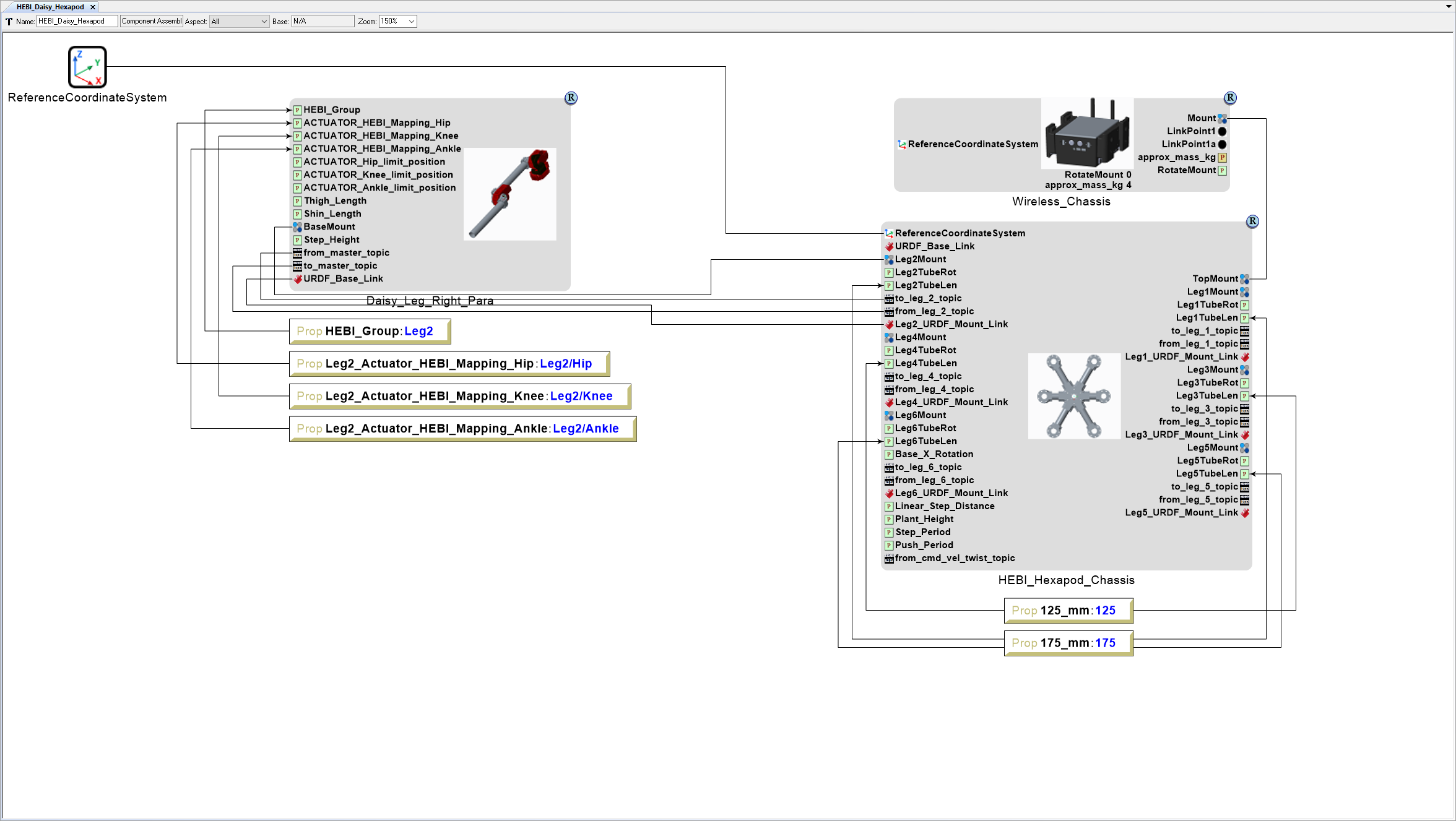
Add Leg 2
Locate the GME Browser window.
Right-click on the RootFolder > B_SubSystems > 2_Locomotion > 1_Leg > 3DOF > StepPush > Daisy_Leg_Right_Para Component Assembly and select .
Inside the HEBI_Daisy_Hexapod Component Assembly canvas, right-click and select .
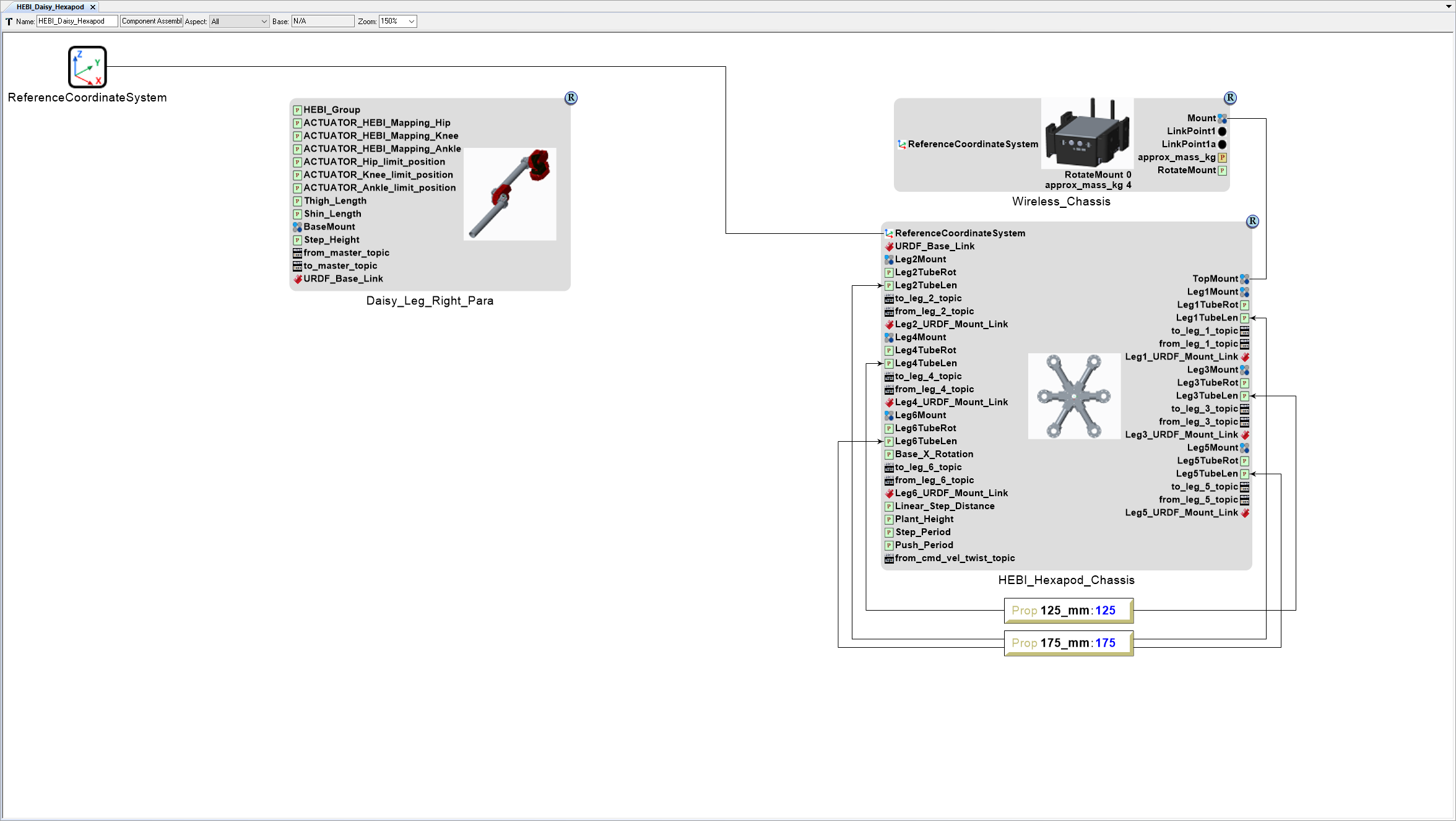
Connect Leg 2 to HEBI_Hexapod_Chassis
Left-click Connect Mode on the Mode toolbar (alternative press Ctrl-2 to activate Connect Mode).
Left-click the Daisy_Leg_Right_Para model’s BaseMount Connector port.
Then left-click on the HEBI_Hexapod_Chassis model’s Leg2Mount Connector port.
Left-click the Daisy_Leg_Right_Para model’s from_master_topic port.
Then left-click on the HEBI_Hexapod_Chassis model’s to_leg_2_topic port.
Left-click the Daisy_Leg_Right_Para model’s to_master_topic port.
Then left-click on the HEBI_Hexapod_Chassis model’s from_leg_2_topic port.
Left-click the Daisy_Leg_Right_Para model’s URDF_Base_Link port.
Then left-click on the HEBI_Hexapod_Chassis model’s Leg2_URDF_Mount_Link port.
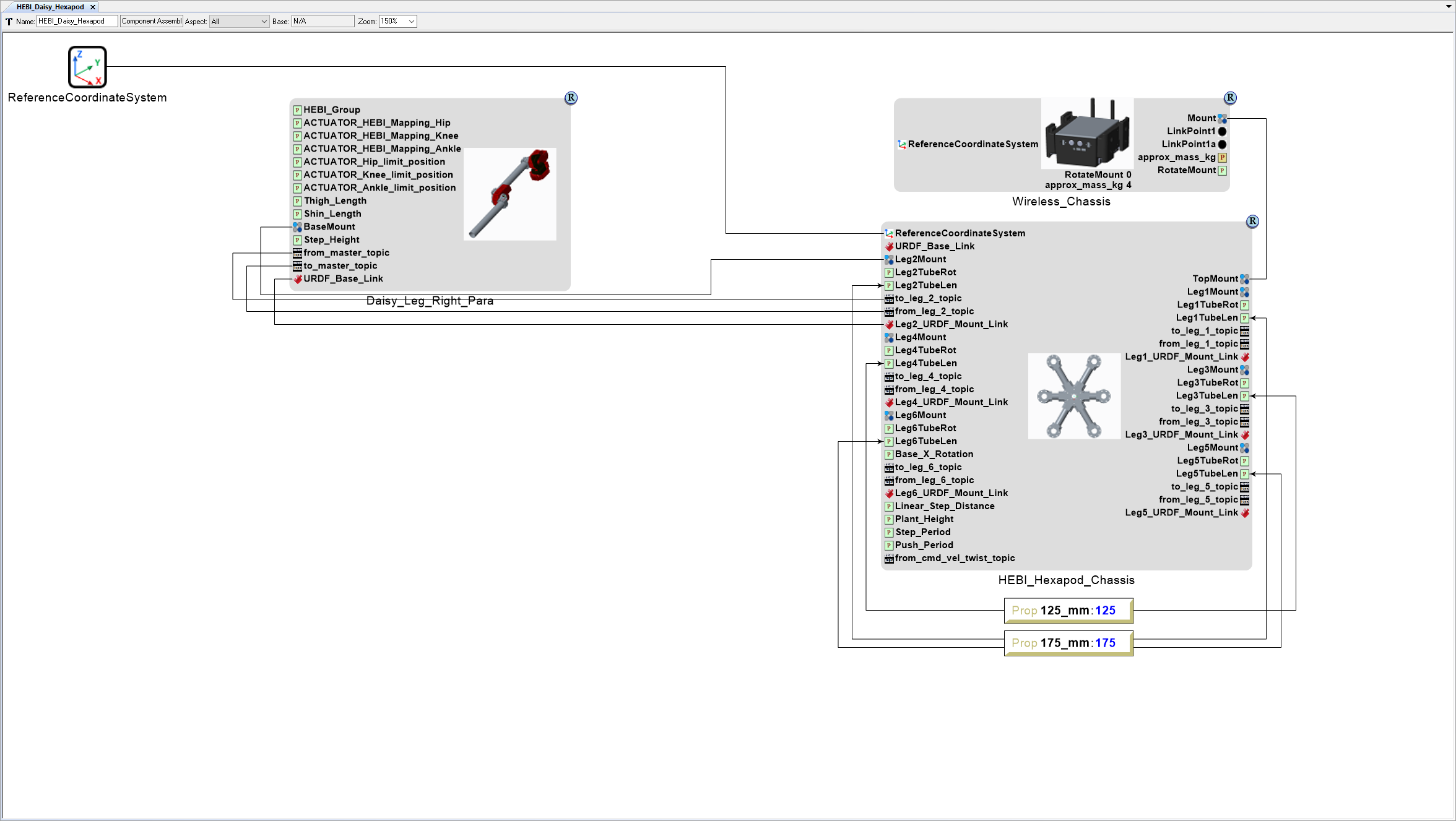
Left-click Edit Mode on the Mode toolbar (alternatively press Ctrl-1 to activate Edit Mode).
Set Leg 2 Parameters
With the HEBI_Daisy_Hexapod Component Assembly canvas open, right-click on the canvas just below the HEBI_Hexapod_Chassis model and select .
Name the Property HEBI_Group.
Set the Property Value to Leg2.
Connect the HEBI_Group Property to the HEBI_Hexapod_Chassis model’s HEBI_Group Parameter port.
Add a Property Leg2_Actuator_HEBI_Mapping_Hip with a Value of Leg2/Hip.
Connect the Leg2_Actuator_HEBI_Mapping_Hip Property to the HEBI_Hexapod_Chassis model’s ACTUATOR_HEBI_Mapping_Hip Parameter port.
Add a Property Leg2_Actuator_HEBI_Mapping_Knee with a Value of Leg2/Knee.
Connect the Leg2_Actuator_HEBI_Mapping_Knee Property to the HEBI_Hexapod_Chassis model’s ACTUATOR_HEBI_Mapping_Knee Parameter port.
Add a Property Leg2_Actuator_HEBI_Mapping_Ankle with a Value of Leg2/Ankle.
Connect the Leg2_Actuator_HEBI_Mapping_Ankle Property to the HEBI_Hexapod_Chassis model’s ACTUATOR_HEBI_Mapping_Ankle Parameter port.
Add Leg 4
- Locate the GME Browser window.
- Right-click on the RootFolder > B_SubSystems > 2_Locomotion > 1_Leg > 3DOF > StepPush > Daisy_Leg_Right_Para Component Assembly and select .
- Inside the HEBI_Daisy_Hexapod Component Assembly canvas, right-click and select .
Connect Leg 4 to HEBI_Hexapod_Chassis
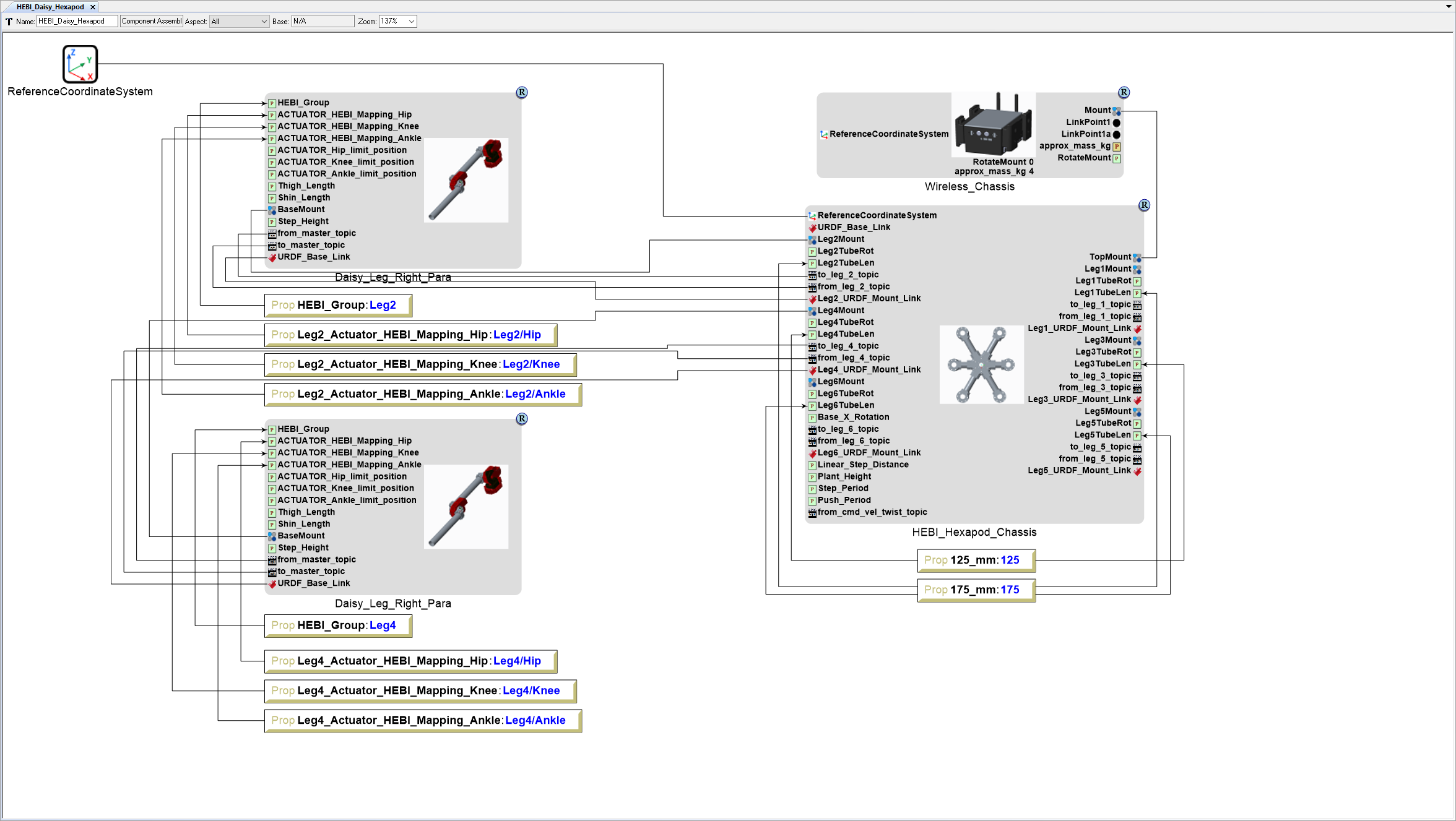
- Connect the Daisy_Leg_Right_Para model’s BaseMount Connector port to the HEBI_Hexapod_Chassis model’s Leg4Mount Connector port.
- Connect the Daisy_Leg_Right_Para model’s from_master_topic port to the HEBI_Hexapod_Chassis model’s to_leg_4_topic port.
- Connect the Daisy_Leg_Right_Para model’s to_master_topic port to the HEBI_Hexapod_Chassis model’s from_leg_4_topic port.
- Connect the Daisy_Leg_Right_Para model’s URDF_Base_Link port to the HEBI_Hexapod_Chassis model’s Leg4_URDF_Mount_Link port.
Set Leg 4 Parameters
Add a Property HEBI_Group with a Value of Leg4.
Connect the HEBI_Group Property to the HEBI_Hexapod_Chassis model’s HEBI_Group Parameter port.
Add a Property Leg4_Actuator_HEBI_Mapping_Hip with a Value of Leg4/Hip.
Connect the Leg4_Actuator_HEBI_Mapping_Hip Property to the HEBI_Hexapod_Chassis model’s ACTUATOR_HEBI_Mapping_Hip Parameter port.
Add a Property Leg4_Actuator_HEBI_Mapping_Knee with a Value of Leg4/Knee.
Connect the Leg4_Actuator_HEBI_Mapping_Knee Property to the HEBI_Hexapod_Chassis model’s ACTUATOR_HEBI_Mapping_Knee Parameter port.
Add a Property Leg4_Actuator_HEBI_Mapping_Ankle with a Value of Leg4/Ankle.
Connect the Leg4_Actuator_HEBI_Mapping_Ankle Property to the HEBI_Hexapod_Chassis model’s ACTUATOR_HEBI_Mapping_Ankle Parameter port.
Add Leg 6
- Locate the GME Browser window.
- Right-click on the RootFolder > B_SubSystems > 2_Locomotion > 1_Leg > 3DOF > StepPush > Daisy_Leg_Right_Para Component Assembly and select .
- Inside the HEBI_Daisy_Hexapod Component Assembly canvas, right-click and select .
Connect Leg 6 to HEBI_Hexapod_Chassis
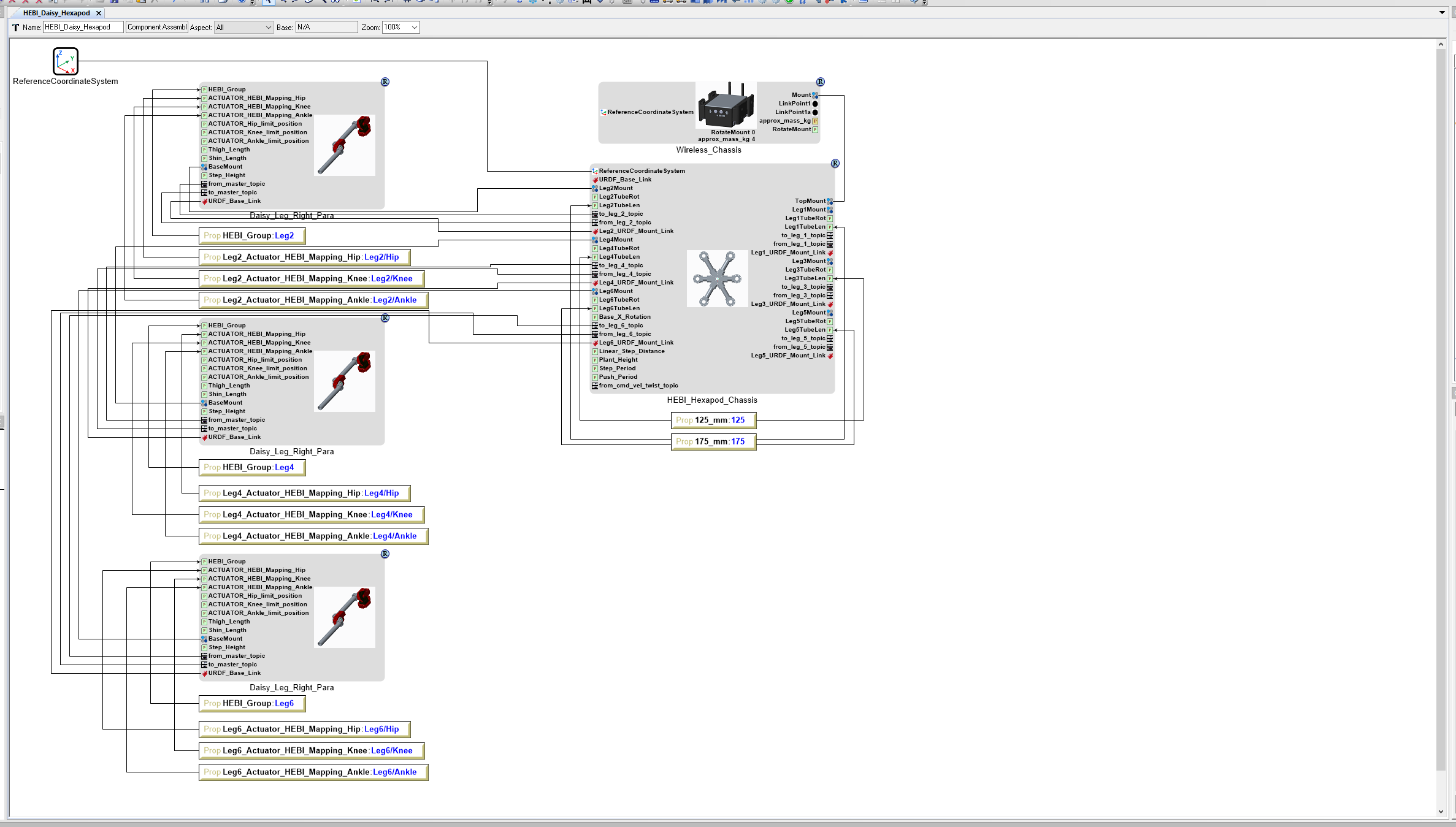
- Connect the Daisy_Leg_Right_Para model’s BaseMount Connector port to the HEBI_Hexapod_Chassis model’s Leg6Mount Connector port.
- Connect the Daisy_Leg_Right_Para model’s from_master_topic port to the HEBI_Hexapod_Chassis model’s to_leg_6_topic port.
- Connect the Daisy_Leg_Right_Para model’s to_master_topic port to the HEBI_Hexapod_Chassis model’s from_leg_6_topic port.
- Connect the Daisy_Leg_Right_Para model’s URDF_Base_Link port to the HEBI_Hexapod_Chassis model’s Leg6_URDF_Mount_Link port.
Set Leg 6 Parameters
Add a Property HEBI_Group with a Value of Leg6.
Connect the HEBI_Group Property to the HEBI_Hexapod_Chassis model’s HEBI_Group Parameter port.
Add a Property Leg6_Actuator_HEBI_Mapping_Hip with a Value of Leg6/Hip.
Connect the Leg6_Actuator_HEBI_Mapping_Hip Property to the HEBI_Hexapod_Chassis model’s ACTUATOR_HEBI_Mapping_Hip Parameter port.
Add a Property Leg6_Actuator_HEBI_Mapping_Knee with a Value of Leg6/Knee.
Connect the Leg6_Actuator_HEBI_Mapping_Knee Property to the HEBI_Hexapod_Chassis model’s ACTUATOR_HEBI_Mapping_Knee Parameter port.
Add a Property Leg6_Actuator_HEBI_Mapping_Ankle with a Value of Leg6/Ankle.
Connect the Leg6_Actuator_HEBI_Mapping_Ankle Property to the HEBI_Hexapod_Chassis model’s ACTUATOR_HEBI_Mapping_Ankle Parameter port.
Add Left Legs
Add Leg 1
- Locate the GME Browser window.
- Right-click on the RootFolder > B_SubSystems > 2_Locomotion > 1_Leg > 3DOF > StepPush > Daisy_Leg_Right_Para Component Assembly and select .
- Inside the HEBI_Daisy_Hexapod Component Assembly canvas, right-click and select .
Connect Leg 1 to HEBI_Hexapod_Chassis
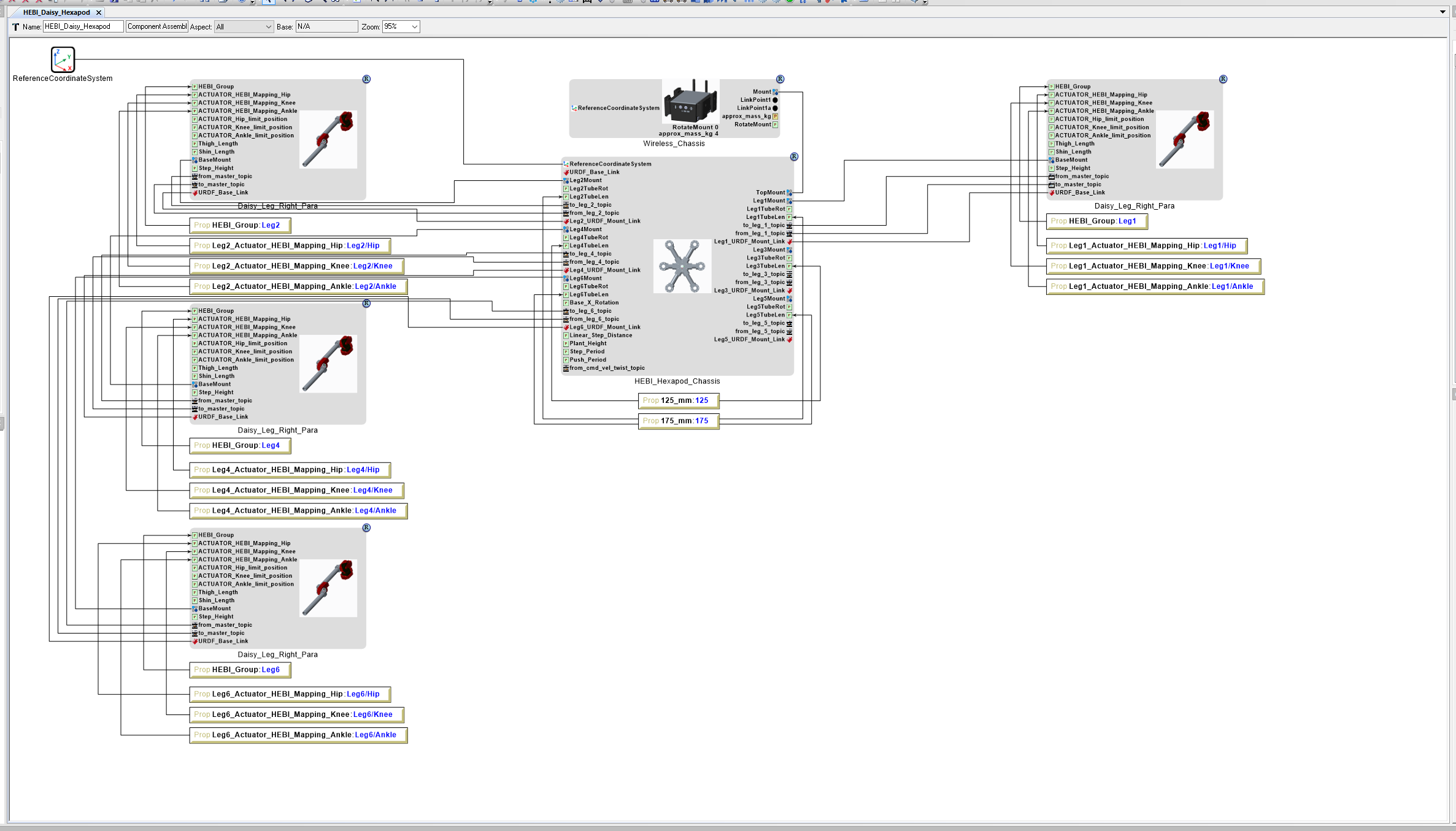
- Connect the Daisy_Leg_Right_Para model’s BaseMount Connector port to the HEBI_Hexapod_Chassis model’s Leg1Mount Connector port.
- Connect the Daisy_Leg_Right_Para model’s from_master_topic port to the HEBI_Hexapod_Chassis model’s to_leg_1_topic port.
- Connect the Daisy_Leg_Right_Para model’s to_master_topic port to the HEBI_Hexapod_Chassis model’s from_leg_1_topic port.
- Connect the Daisy_Leg_Right_Para model’s URDF_Base_Link port to the HEBI_Hexapod_Chassis model’s Leg1_URDF_Mount_Link port.
Set Leg 1 Parameters
Add a Property HEBI_Group with a Value of Leg1.
Connect the HEBI_Group Property to the HEBI_Hexapod_Chassis model’s HEBI_Group Parameter port.
Add a Property Leg1_Actuator_HEBI_Mapping_Hip with a Value of Leg1/Hip.
Connect the Leg1_Actuator_HEBI_Mapping_Hip Property to the HEBI_Hexapod_Chassis model’s ACTUATOR_HEBI_Mapping_Hip Parameter port.
Add a Property Leg1_Actuator_HEBI_Mapping_Knee with a Value of Leg1/Knee.
Connect the Leg1_Actuator_HEBI_Mapping_Knee Property to the HEBI_Hexapod_Chassis model’s ACTUATOR_HEBI_Mapping_Knee Parameter port.
Add a Property Leg1_Actuator_HEBI_Mapping_Ankle with a Value of Leg1/Ankle.
Connect the Leg1_Actuator_HEBI_Mapping_Ankle Property to the HEBI_Hexapod_Chassis model’s ACTUATOR_HEBI_Mapping_Ankle Parameter port.
Add Leg 3
- Locate the GME Browser window.
- Right-click on the RootFolder > B_SubSystems > 2_Locomotion > 1_Leg > 3DOF > StepPush > Daisy_Leg_Right_Para Component Assembly and select .
- Inside the HEBI_Daisy_Hexapod Component Assembly canvas, right-click and select .
Connect Leg 3 to HEBI_Hexapod_Chassis
- Connect the Daisy_Leg_Right_Para model’s BaseMount Connector port to the HEBI_Hexapod_Chassis model’s Leg3Mount Connector port.
- Connect the Daisy_Leg_Right_Para model’s from_master_topic port to the HEBI_Hexapod_Chassis model’s to_leg_3_topic port.
- Connect the Daisy_Leg_Right_Para model’s to_master_topic port to the HEBI_Hexapod_Chassis model’s from_leg_3_topic port.
- Connect the Daisy_Leg_Right_Para model’s URDF_Base_Link port to the HEBI_Hexapod_Chassis model’s Leg3_URDF_Mount_Link port.
Set Leg 3 Parameters
Add a Property HEBI_Group with a Value of Leg3.
Connect the HEBI_Group Property to the HEBI_Hexapod_Chassis model’s HEBI_Group Parameter port.
Add a Property Leg3_Actuator_HEBI_Mapping_Hip with a Value of Leg3/Hip.
Connect the Leg3_Actuator_HEBI_Mapping_Hip Property to the HEBI_Hexapod_Chassis model’s ACTUATOR_HEBI_Mapping_Hip Parameter port.
Add a Property Leg3_Actuator_HEBI_Mapping_Knee with a Value of Leg3/Knee.
Connect the Leg3_Actuator_HEBI_Mapping_Knee Property to the HEBI_Hexapod_Chassis model’s ACTUATOR_HEBI_Mapping_Knee Parameter port.
Add a Property Leg3_Actuator_HEBI_Mapping_Ankle with a Value of Leg3/Ankle.
Connect the Leg3_Actuator_HEBI_Mapping_Ankle Property to the HEBI_Hexapod_Chassis model’s ACTUATOR_HEBI_Mapping_Ankle Parameter port.
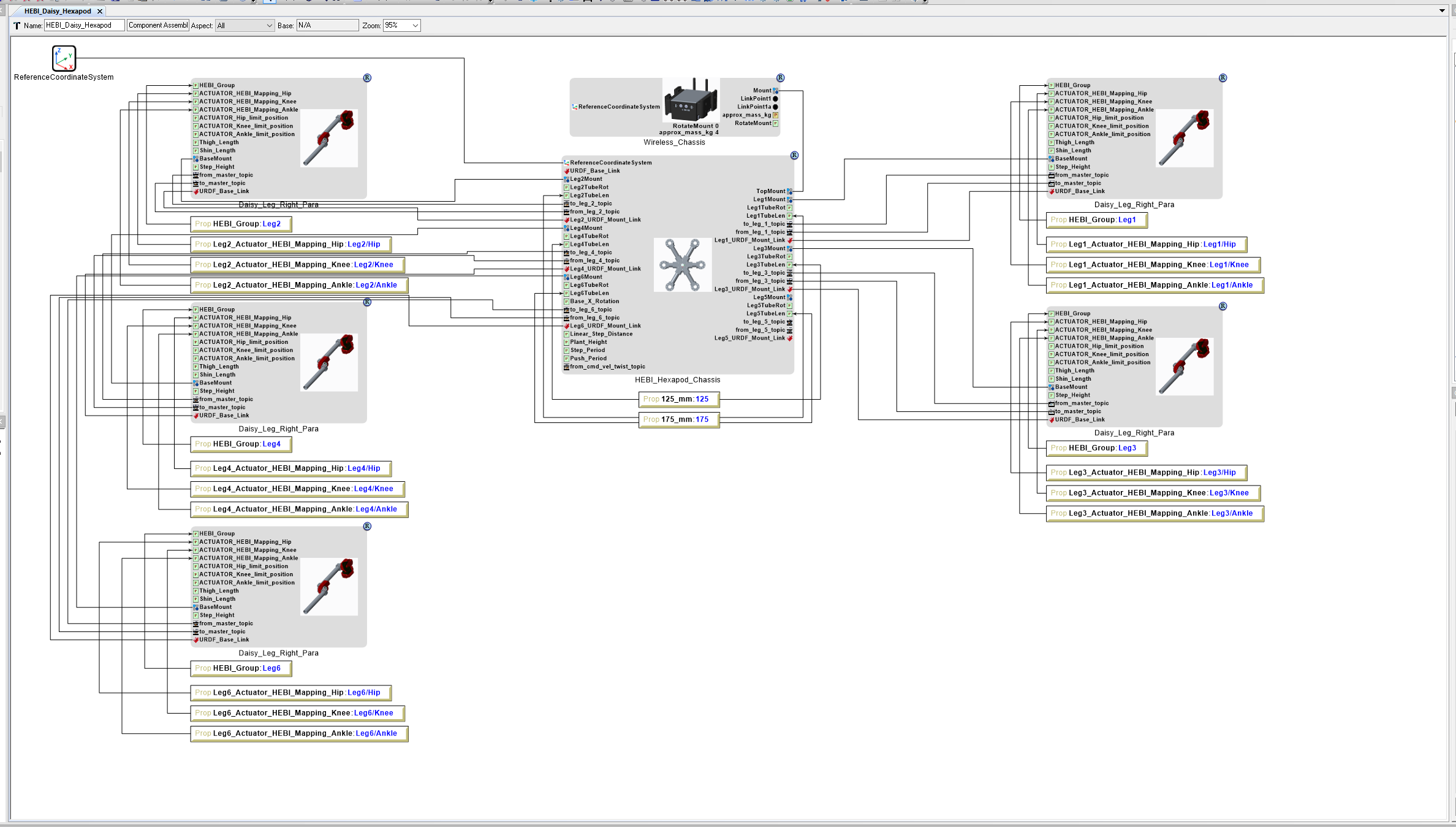
Add Leg 5
- Locate the GME Browser window.
- Right-click on the RootFolder > B_SubSystems > 2_Locomotion > 1_Leg > 3DOF > StepPush > Daisy_Leg_Right_Para Component Assembly and select .
- Inside the HEBI_Daisy_Hexapod Component Assembly canvas, right-click and select .
Connect Leg 5 to HEBI_Hexapod_Chassis
- Connect the Daisy_Leg_Right_Para model’s BaseMount Connector port to the HEBI_Hexapod_Chassis model’s Leg5Mount Connector port.
- Connect the Daisy_Leg_Right_Para model’s from_master_topic port to the HEBI_Hexapod_Chassis model’s to_leg_5_topic port.
- Connect the Daisy_Leg_Right_Para model’s to_master_topic port to the HEBI_Hexapod_Chassis model’s from_leg_5_topic port.
- Connect the Daisy_Leg_Right_Para model’s URDF_Base_Link port to the HEBI_Hexapod_Chassis model’s Leg5_URDF_Mount_Link port.
Set Leg 5 Parameters
Add a Property HEBI_Group with a Value of Leg5.
Connect the HEBI_Group Property to the HEBI_Hexapod_Chassis model’s HEBI_Group Parameter port.
Add a Property Leg5_Actuator_HEBI_Mapping_Hip with a Value of Leg5/Hip.
Connect the Leg5_Actuator_HEBI_Mapping_Hip Property to the HEBI_Hexapod_Chassis model’s ACTUATOR_HEBI_Mapping_Hip Parameter port.
Add a Property Leg5_Actuator_HEBI_Mapping_Knee with a Value of Leg5/Knee.
Connect the Leg5_Actuator_HEBI_Mapping_Knee Property to the HEBI_Hexapod_Chassis model’s ACTUATOR_HEBI_Mapping_Knee Parameter port.
Add a Property Leg5_Actuator_HEBI_Mapping_Ankle with a Value of Leg5/Ankle.
Connect the Leg5_Actuator_HEBI_Mapping_Ankle Property to the HEBI_Hexapod_Chassis model’s ACTUATOR_HEBI_Mapping_Ankle Parameter port.