Create Testing Folder
First, you need to create a new Testing folder:
- Locate the GME Browser window.
- Right-click on the RootFolder and select .
- Name this new folder ROS_Pub_Sub_Tutorial_Test.
Create and Run Test Bench
Now you have created a simple model consiting of a Talker_and_Listener Component Assembly containing connected Talker and Listener Components.
In order to generate runtime artifacts from this model, you need to create a Test Bench containing the Talker_and_Listener Component Assembly.
Locate the GME Browser window.
Right-click on the ROS_Pub_Sub_Tutorial_Test Testing folder and select .
Name this new Test Bench Talker_and_Listener_Test.
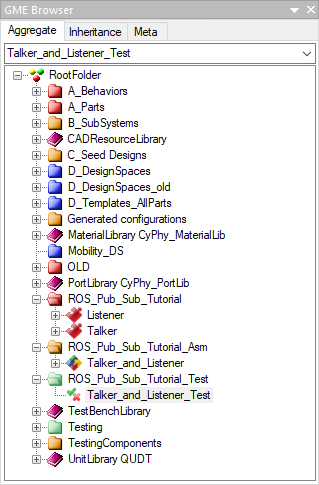
Double left-click the new Talker_and_Listener_Test Test Bench to open its canvas.
Add Talker_and_Listener Component Assembly
Locate the GME Browser window.
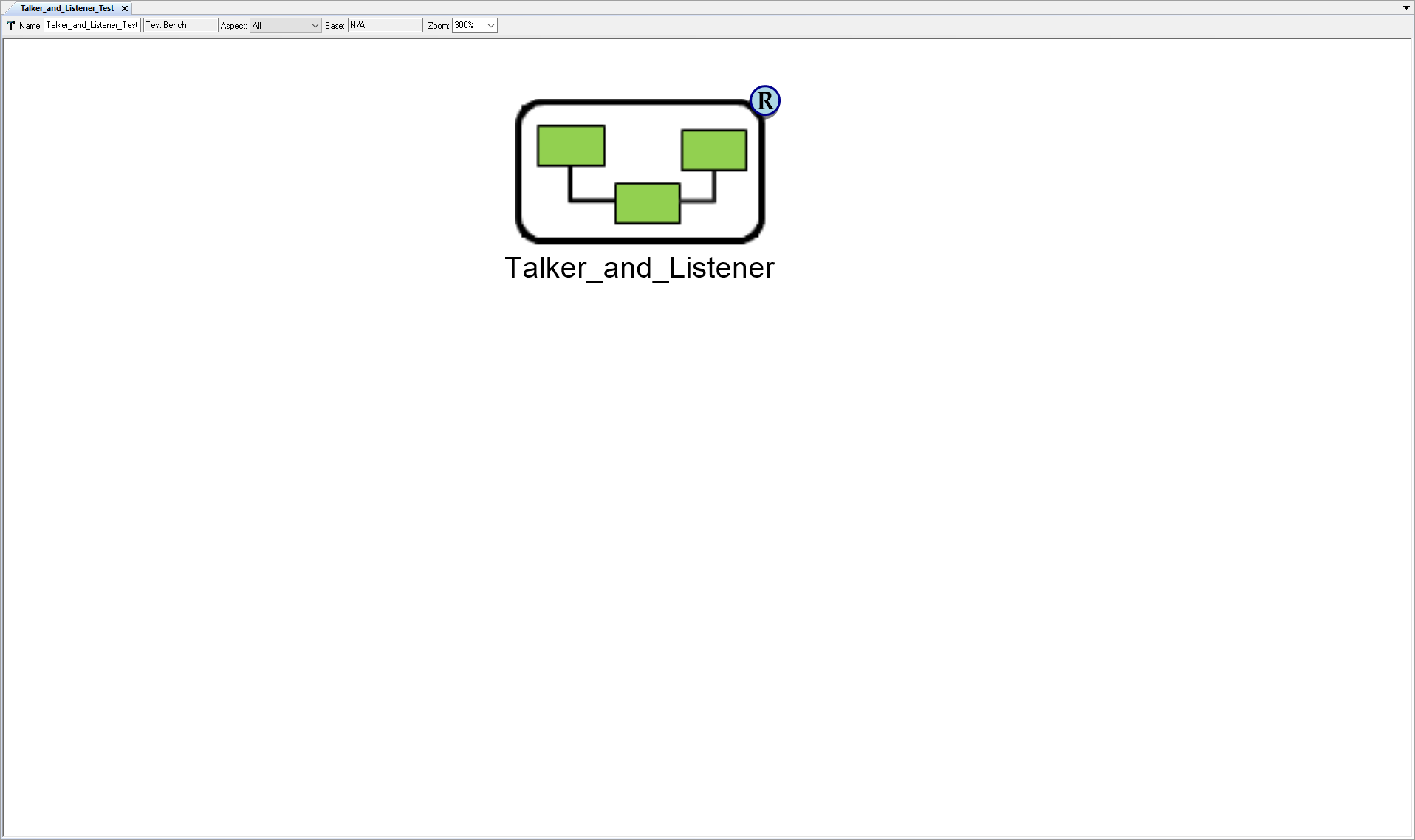
Right-click on the RootFolder > ROS_Pub_Sub_Tutorial_Asm > Talker_and_Listener Component Assembly and select .
Inside the Talker_and_Listener_Test Test Bench canvas, right-click and select .
The Select Reference Role Type window will appear. Select TopLevelSystemUnderTest and then OK
Add Workflow
Now you need to add a workflow. Workflows are groups of defined executables and scripts that interpret the model, generate artifacts, and(or) run other programs as needed.
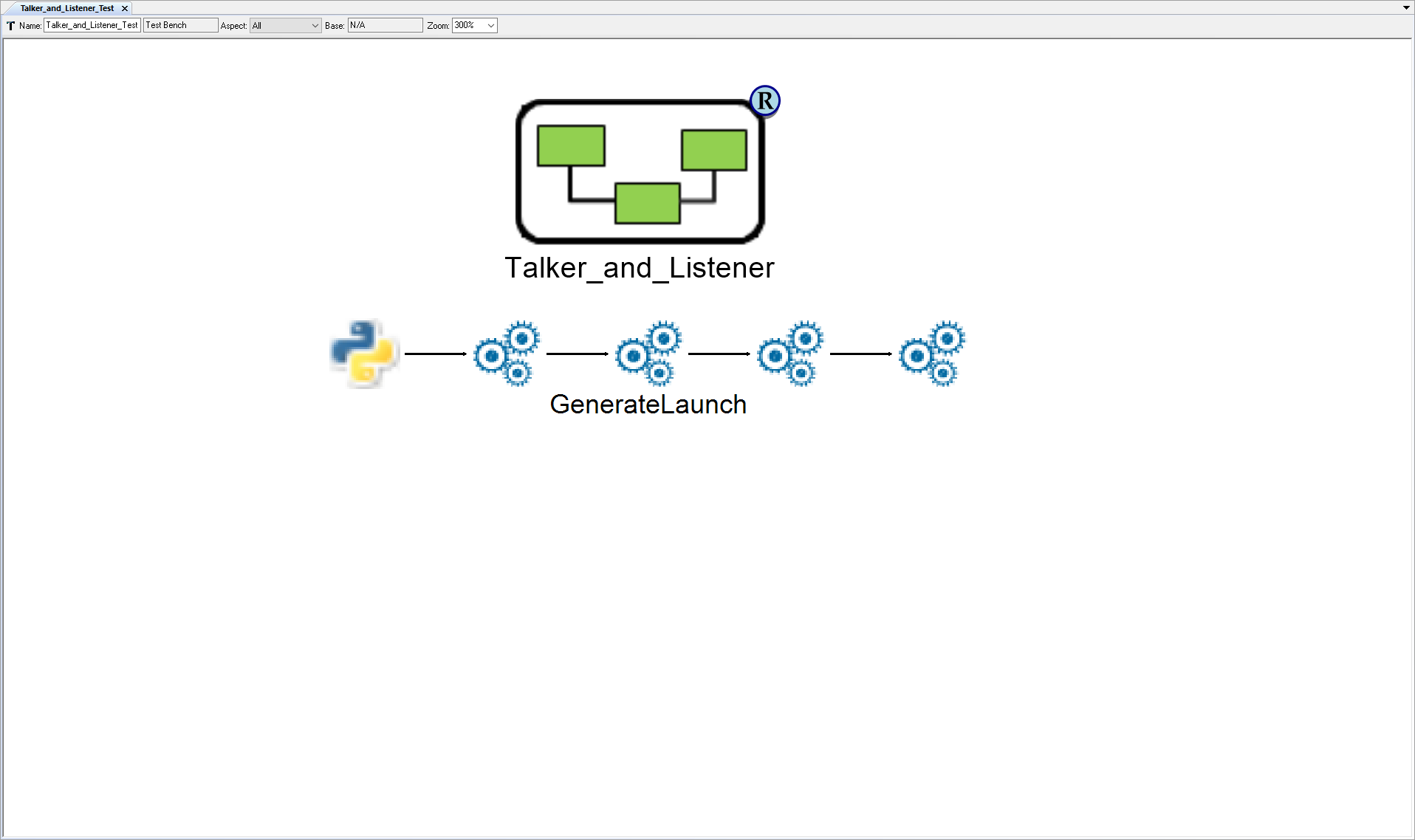
For this tutorial, you will be adding the GenerateLaunch Workflow which is already included in the Testing directory.
Locate the GME Browser window.
Right-click on the RootFolder > Testing > WorkflowDefinitions > GenerateLaunch Workflow and select .
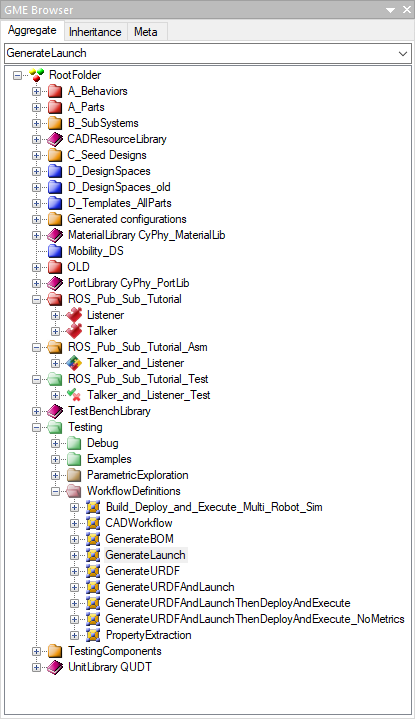
Inside the Talker_and_Listener_Test Test Bench canvas, right-click and select .
Add Test Bench Parameters
Finally, you need to configure the Test Bench via a few Parameters.
Right-click within the Talker_and_Listener_Test Test Bench canvas and select .
Name the Parameter urdf_path and set its Value to URDF_PATH
Right-click within the Talker_and_Listener_Test Test Bench canvas and select .
Name the Parameter gazebo_simulation and set its Value to False
Right-click within the Talker_and_Listener_Test Test Bench canvas and select .
Name the Parameter generated_launch_package_name and set its Value to talker_and_listener
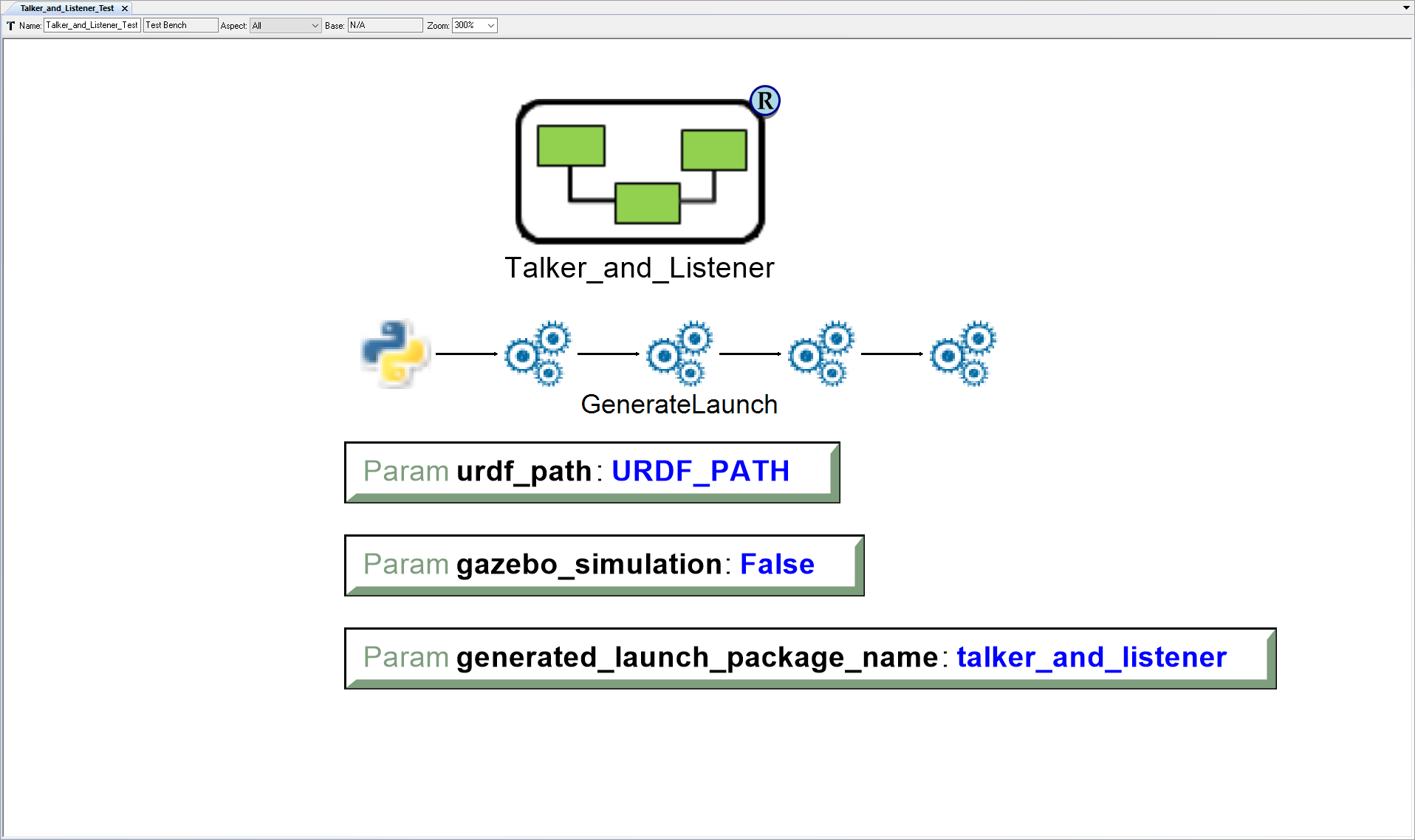
Run Test Bench
Now its time to run the Talker_and_Listener_Test Test Bench.
With the Talker_and_Listener_Test Test Bench canvas open, left-click on the CyPhy Master Interpreter button.

The CyPhy Master Interpreter window will open. Ensure that Post to META Job Manager is checked and that the Talker_and_Listener_Test configuration is selected. Then Left-click OK.
The Job will be listed under the Active Jobs tab of the Results Browser.
While the job is running, it will be colored blue. Once it finishes successfully, it will change to green.
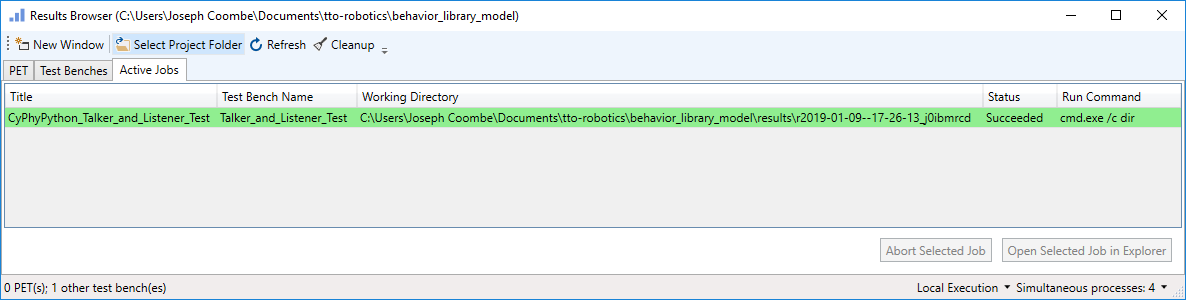
View Generated Artifacts
In the Results Browser window - under the Active Jobs tab, right-click on the completed job and select .
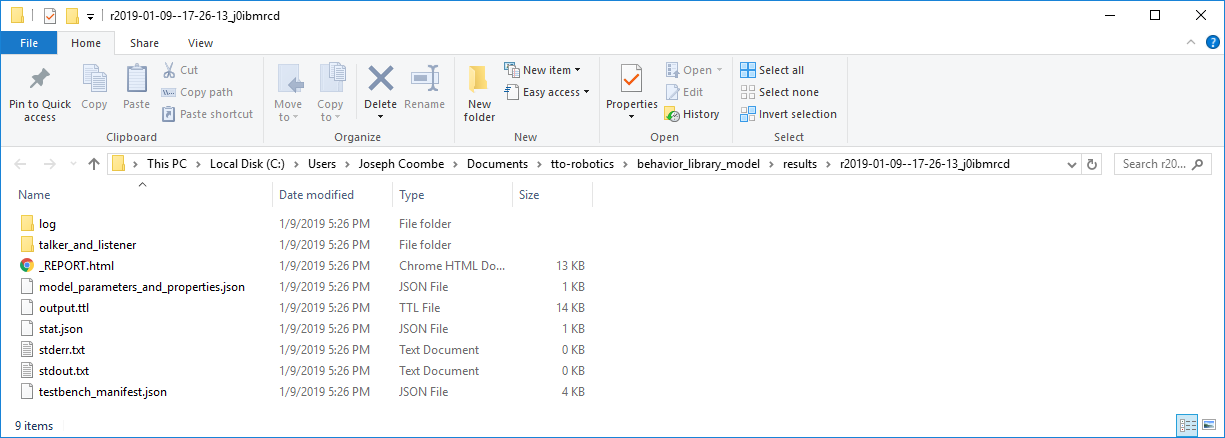
Inside the folder, you should see a generated ROS Package talker_and_listener.
You will want to transfer this generated ROS Package over to your Linux machine for the next step in the tutorial.
Congratulations! You have successfully generated a ROS Package containing model-based .launch file.